
Icon match
Launcher icon, splash and install prompt must show the same coral mark. A redrawn glyph is a stop signal.
A clean install takes under three minutes on a current Android build. The walkthrough covers package verification, unknown-sources flow, permission review, first open and troubleshooting. The install page serves the Slots Winner package from this domain only.
| Category | Status | Why the app needs it |
|---|---|---|
| Network access | Granted | Loads getslotswinner games and live wins from the verified server. |
| Storage | Granted | Caches thumbnails for the mixed-provider library and the daily reward rail. |
| Camera | Not requested | The app does not open the camera at install time. |
| Microphone | Not requested | The app does not record audio at install time. |
| Location | Not requested | The app does not read your location at install time. |
| SMS or contacts | Not requested | The app does not read SMS or contacts at install time. |
| Symptom | Likely cause | Cleanest fix |
|---|---|---|
| Install blocked by Play Protect | Play Protect flags an unknown-source install | Tap Settings → Apps → Special access → Install unknown apps, allow this source, retry. |
| Parse error | Partial download or interrupted network | Cancel the install, reopen the route, retry on a stable connection. |
| App installed but icon missing | Launcher grouped the app | Open the launcher, search "Slots Winner", drag the icon back to the home screen. |
| Signature mismatch | An older Slots Winner package is still installed | Uninstall the older package, then reinstall from the verified route. |
| Permission prompt looks wrong | A redrawn prompt from a mirror or third-party store | Cancel, open /contact/, share the install prompt screenshot, and reinstall only from this domain. |
Open /contact/ for a private ticket, or send the install prompt screenshot to the support desk.
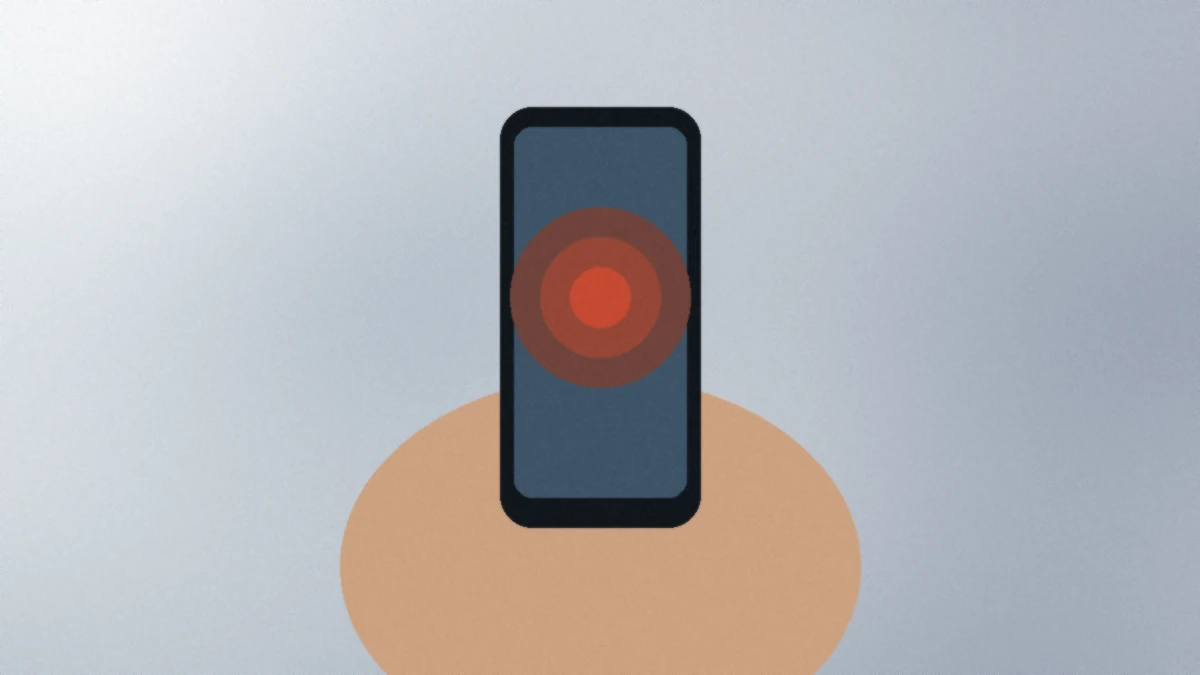
The install walkthrough exists because Android unknown-source flows are easy to hijack with lookalike prompts. Match the Slots Winner mark on the prompt to the mark on these notes before you allow the source.
Launcher icon, splash and install prompt must show the same coral mark. A redrawn glyph is a stop signal.
Storage and network are expected at install. Camera, microphone, location, SMS and contacts are not part of the verified install-time ask.
Play Protect blocks, parse errors, missing icons, signature mismatches and redrawn prompts each have a clean recovery path documented in the troubleshooting news piece.
Confirm the home library loads, pin /contact/ for support, and only then explore promotions. A clean install is the foundation for destination-applied offers later.
Step 1 - verify the brand icon - exists because the most common install failure on Android is installing a different package by mistake. The brand mark is the cheapest check you can run before any download starts. Step 2 - open the install route - exists because the verified route is the only path that returns the genuine Slots Winner package. Step 3 - allow install source - is required because Android blocks unknown-source installs by default. Step 4 - review permissions - exists because a redrawn permission prompt is the clearest sign of a mirror or third-party store.
Step 5 - first open - exists because the splash screen is the second check on the brand identity. If the splash shows a different logo, the install failed silently. Step 6 - pin the support channel - exists because most install failures can be resolved in minutes if the support channel is one tap away when the failure happens.
Android does not trust any package that is not delivered through the Google Play Store by default. The "unknown source" prompt is the user opt-in that lets the install complete. The setting is scoped to the current install and resets after the package is installed. There is no long-term permission grant and no permanent security gap from a single install.
Listing each permission in a table lets you compare what the verified package asks for with what the install prompt you actually see asks for. If the install prompt lists anything outside the table, cancel and reopen the verified route.
Cancel the install. Check the storage permission for the browser or app store you used to download the package. Reopen the verified route and retry on a stable connection. If the second attempt fails, open /contact/ with the install prompt screenshot.
Step 1 - verify the brand icon - exists because the most common install failure on Android is installing a different package by mistake. The brand mark is the cheapest check you can run before any download starts. Step 2 - open the install route - exists because the verified route is the only path that returns the genuine Slots Winner package. Step 3 - allow install source - is required because Android blocks unknown-source installs by default. Step 4 - review permissions - exists because a redrawn permission prompt is the clearest sign of a mirror or third-party store.
Step 5 - first open - exists because the splash screen is the second check on the brand identity. If the splash shows a different logo, the install failed silently. Step 6 - pin the support channel - exists because most install failures can be resolved in minutes if the support channel is one tap away when the failure happens.
Android does not trust any package that is not delivered through the Google Play Store by default. The "unknown source" prompt is the user opt-in that lets the install complete. The setting is scoped to the current install and resets after the package is installed. There is no long-term permission grant and no permanent security gap from a single install.
Listing each permission in a table lets you compare what the verified package asks for with what the install prompt you actually see asks for. If the install prompt lists anything outside the table, cancel and reopen the verified route.
Cancel the install. Check the storage permission for the browser or app store you used to download the package. Reopen the verified route and retry on a stable connection. If the second attempt fails, open /contact/ with the install prompt screenshot.
Step 1 - verify the brand icon - exists because the most common install failure on Android is installing a different package by mistake. The brand mark is the cheapest check you can run before any download starts. Step 2 - open the install route - exists because the verified route is the only path that returns the genuine Slots Winner package. Step 3 - allow install source - is required because Android blocks unknown-source installs by default. Step 4 - review permissions - exists because a redrawn permission prompt is the clearest sign of a mirror or third-party store.
Step 5 - first open - exists because the splash screen is the second check on the brand identity. If the splash shows a different logo, the install failed silently. Step 6 - pin the support channel - exists because most install failures can be resolved in minutes if the support channel is one tap away when the failure happens.
Android does not trust any package that is not delivered through the Google Play Store by default. The "unknown source" prompt is the user opt-in that lets the install complete. The setting is scoped to the current install and resets after the package is installed. There is no long-term permission grant and no permanent security gap from a single install.
Listing each permission in a table lets you compare what the verified package asks for with what the install prompt you actually see asks for. If the install prompt lists anything outside the table, cancel and reopen the verified route.
Cancel the install. Check the storage permission for the browser or app store you used to download the package. Reopen the verified route and retry on a stable connection. If the second attempt fails, open /contact/ with the install prompt screenshot.